Category: Data Analysis

  • Pivot Table in Excel : Beginners Guide 2026

    Pivot Table in Excel : Beginners Guide 2026

    If you’ve ever looked at a spreadsheet with hundreds or even thousands of rows, you know how difficult it can be to find useful information. Endless data scrolling is not only time-consuming, it also makes it easy to miss important trends.

    That’s where Pivot Tables are useful.

    A Pivot Table is a great way to summarize large amounts of data with just a few clicks. Rather than manually doing totals or creating multiple formulas , Excel summarizes your data in a simple report that changes automatically when your data changes .

    Best part? No need to be an Excel expert to use it.

    This article will explain what a Pivot Table is, why they are useful and how to build one step by step.

    1. What is a Pivot Table?
    2. When Should You Use a Pivot Table?
    3. Prepare Your Data
    4. Step 1: Select Your Data
    5. Step 2: Open the Insert Tab
    6. Step 3: Choose Where to Place the Pivot Table
    7. Step 4: Build Your Pivot Table
    8. Step 5: Rearrange Your Report
    9. Step 6: Filter Your Data
    10. Step 7: Refresh the Pivot Table
    11. Benefits of Using Pivot Tables
    12. Common Mistakes Beginners Make
    13. Tips for Working with Pivot Tables
    14. Conclusion
    15. Frequently Asked Questions
      1. How do I refresh a Pivot Table?
      2. How do I filter a Pivot Table?
      3. Can I create a Pivot Table from multiple sheets?
      4. Why is my Pivot Table not updating?

    What is a Pivot Table?

    Pivot Table is an inbuilt feature in Excel which helps us to summarize and analyze large data sets. It helps you to organize information, calculate totals, count values and compare data without changing the original spreadsheet.

    For example, imagine you have a sales report with hundreds of transactions. Instead of adding formulas for each category, you can create a Pivot Table to instantly see:

    • Total sales by product
    • Sales by employee
    • Monthly revenue
    • Number of orders
    • Average sales value

    This makes Pivot Tables one of the most useful tools for reporting and data analysis.

    When Should You Use a Pivot Table?

    Pivot Tables are helpful whenever you need to summarize data quickly.

    Common examples include:

    • Monthly sales reports
    • Student attendance records
    • Employee performance analysis
    • Budget tracking
    • Inventory management
    • Survey results

    Instead of spending hours creating formulas, you can generate meaningful reports in minutes.

    Prepare Your Data

    Before creating a Pivot Table, make sure your data is organized properly.

    Your spreadsheet should have:

    • A header row with clear column names
    • No completely blank rows or columns
    • Consistent data in each column
    • No merged cells

    Example:

    ProductCategorySalesperonMonthSales
    LaptopElectronicsRahulJanuary45000
    MouseAccessoriesPriyaJanuary1500
    KeyboardAccessoriesRahulFebruary2500
    MonitorElectronicsAmanFebruary12000

    A clean dataset helps Excel create an accurate Pivot Table.

    Step 1: Select Your Data

    Click any cell inside your dataset.

    If your data is continuous, Excel usually detects the entire table automatically.

    Step 2: Open the Insert Tab

    Go to the Insert tab on the Excel ribbon.

    Click PivotTable.

    A dialog box will appear asking you to confirm the data range.

    If Excel has selected the correct range, click OK.

    Step 3: Choose Where to Place the Pivot Table

    You have two options:

    • New Worksheet (recommended)
    • Existing Worksheet

    For beginners, creating the Pivot Table in a new worksheet keeps your original data separate from the report.

    Step 4: Build Your Pivot Table

    After clicking OK, Excel opens the PivotTable Fields panel.

    You’ll see four sections:

    • Filters
    • Columns
    • Rows
    • Values

    This is where you decide how your report should look.
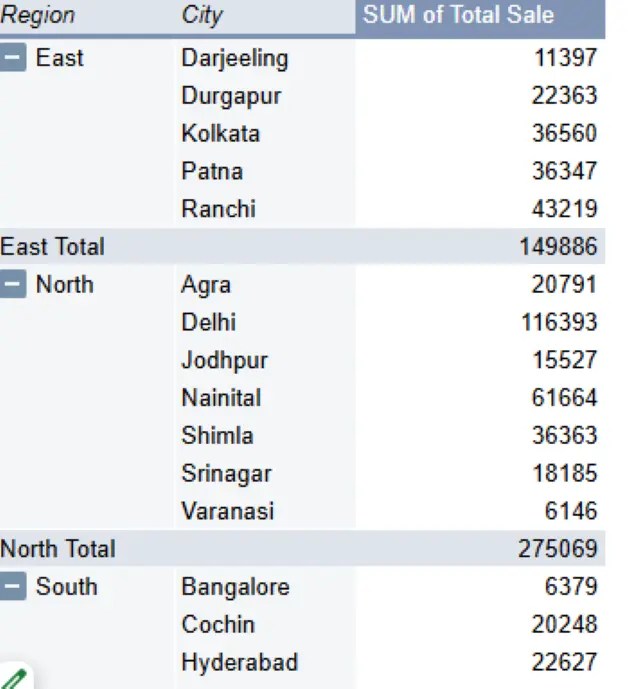
    Excel Pivot Table displaying regionwise sales data with summarized sales values for different regions.
    A Pivot Table summarizing sales data by region for quick analysis and reporting.

    For example:

    Drag Category into Rows.

    Drag Sales into Values.

    Excel immediately displays the total sales for each category.

    No formulas required.

    Step 5: Rearrange Your Report

    One of the biggest advantages of Pivot Tables is flexibility.

    You can simply drag fields into different sections.

    For example:

    • Put Salesperson in Rows.
    • Put Month in Columns.
    • Keep Sales in Values.

    Now your report shows monthly sales for each employee.

    You can rearrange the report as often as you like without changing the original data.

    Step 6: Filter Your Data

    Suppose you only want to view sales for January.

    Drag the Month field into Filters.

    Choose January from the dropdown menu.

    Your Pivot Table updates instantly.

    Filtering makes it easy to focus on specific information.

    Step 7: Refresh the Pivot Table

    If you add new data to your original spreadsheet, the Pivot Table doesn’t update automatically.

    To refresh it:

    1. Right-click anywhere inside the Pivot Table.
    2. Select Refresh.

    Excel will update the report using the latest data.

    Benefits of Using Pivot Tables

    Here are some reasons why Pivot Tables are popular among Excel users:

    • Summarize thousands of rows quickly
    • No complex formulas required
    • Easy to reorganize reports
    • Simple filtering and grouping
    • Saves time on repetitive tasks
    • Helps identify trends and patterns

    Whether you’re a student or a professional, Pivot Tables can make data analysis much easier.

    Common Mistakes Beginners Make

    Many beginners run into problems because of small formatting issues.

    Avoid these mistakes:

    • Leaving blank rows in the dataset
    • Using merged cells
    • Missing column headers
    • Mixing numbers and text in the same column
    • Forgetting to refresh the Pivot Table after updating data

    Keeping your data clean prevents most Pivot Table errors.

    Tips for Working with Pivot Tables

    • Use clear column names.
    • Format your source data as an Excel Table for easier updates.
    • Refresh the Pivot Table whenever new data is added.
    • Experiment with different row and column layouts.
    • Keep your original data unchanged.

    The more you practice, the more comfortable you’ll become with creating useful reports.

    Conclusion

    Pivot Tables are one of the most powerful features in Excel, but surprisingly easy to learn. Once you learn how to create and customize them, you’ll spend less time organizing data and more time understanding it.

    Start with a small dataset, try some different layouts and don’t be afraid to explore the options that are out there. If you use Pivot Tables often, they can be one of the most useful tools in your Excel toolbox.

    Frequently Asked Questions

    How do I refresh a Pivot Table?

    You need to refresh the Pivot Table by right-clicking it and selecting Refresh, or by using the Refresh option on the Data tab. Because Pivote Table Does not necessary filters your data automatically.

    How do I filter a Pivot Table?

    You can filter data using report filters, row labels, column labels, or slicers to display only the information you need.

    Can I create a Pivot Table from multiple sheets?

    Yes. You can make Pivot Tables from different sheets by making use of Power Query, Data Model, or even consolidating the data into one sheet and then making the pivot tables.

    Why is my Pivot Table not updating?

    The reason why Pivot Table is not updating can be the fact that the data range from which it draws information does not have new rows and data, and the Pivot Table itself has not been refreshed.
  • Power BI : A Beginners Guide in 2026

    Power BI : A Beginners Guide in 2026

    Have you ever experienced of large excel sheet and worried about how to manage it? Many busienss experienced this to large data to handle exterimely difficult every day turning that data into useful insights is extermely challenge. This issue is sloved by powerful tool called Power BI.Power BI is one of the most popular business intelligence tools that helps users transform raw data into meaningful insights through interactive reports and dashboards.

    In this guide I will give you idea of Power Bi tools and its use in the businesses.

    1. What Is Power BI?
    2. Why Is Power BI Important?
    3. What are Key Benefits of Using Power BI:
    4. Power BI Service
    5. Mobile Version of Power BI
    6. Key Features of Power BI
    7. Power BI vs Excel
    8. Who Should Learn Power BI?
    9. How to Get Started with Power BI
    10. Conclusion
    11. Frequently Asked Questions (FAQs)
      1. 1. What is Power BI used for?
      2. 2. Do I need coding skills to learn Power BI?
      3. 3. How long does it take to learn Power BI?
      4. 4. Which industries use Power BI?
      5. 5. Can Power BI connect to multiple data sources?
      6. 6. Is Power BI a good career skill in 2026?

    What Is Power BI?

    Power BI is a business analytics and data visualization tool developed by Microsoft. It enables users to connect to various data sources, analyze information, and create visually appealing reports that support better decision-making.

    Whether you’re a student, business owner, data analyst, or marketer, Power BI can help you understand data more effectively.

    Why Is Power BI Important?

    Imaginbe that your company wants to know insights about complex sales data. Rather than manually checking huge amount of data in Excel, PowerBI can create dashboard in seconds that visulaize you top selling products in seconds. Organizations generate large amounts of data every day. Power BI helps convert that data into actionable insights by presenting information in an easy-to-understand format.

    What are Key Benefits of Using Power BI:

    Interactive dashboards
    Real-time data monitoring
    Better business decisions
    Easy report sharing
    Powerful data visualization
    Main Components of Power BI
    Power BI Desktop

    A free desktop application used to create reports, dashboards, and data models.

    Power BI Service

    A cloud-based platform that allows users to publish, share, and collaborate on reports online.

    Mobile Version of Power BI

    Mobile applications of Power BI enable users to access dashboards and reports from anywhere.

    Key Features of Power BI

    Data Connectivity

    Power BI can connect to multiple data sources, including Excel files, databases, cloud services, and web applications.

    Interactive Visualizations

    Users can create charts, graphs, maps, and other visual elements to better understand data.

    Data Modeling

    Power BI allows users to combine and transform data from different sources into a unified model.

    Real-Time Analytics

    Monitor business performance with live dashboards and real-time data updates.

    Report Sharing

    Easily share reports with team members and stakeholders.

    Power BI vs Excel

    If you compate Power BI with Excel, I think Excel is excellent for spreadsheets and calculations, while Power BI is specifically designed for advanced data analysis and visualization.

    Power BI handles larger datasets, creates interactive dashboards, and provides better reporting capabilities than traditional spreadsheets.

    Who Should Learn Power BI?

    Power BI is useful for:

    Data Analysts
    Business Analysts
    Marketing Professionals
    Financial Analysts
    Students
    Business Owners

    How to Get Started with Power BI

    Download Power BI Desktop.
    Connect your data source.
    Clean and transform data.
    Create visualizations.
    Build dashboards.
    Publish and share reports.

    Conclusion

    Power BI is a powerful business intelligence tool that helps users transform complex data into clear and actionable insights. Its user-friendly interface, powerful analytics features, and interactive dashboards make it an excellent choice for beginners and professionals alike. I think, if you want to enhance your data analysis skills and open up new career opportunities in the business intelligence field, leaning Power BI tool will certainly help you to accompalish it by practising this tool regularly.

    Frequently Asked Questions (FAQs)

    1. What is Power BI used for?

    Power BI is a business intelligence tool developed by Microsoft that helps users connect, analyze, and visualize data. It allows you to create interactive dashboards and reports for better decision-making.

    2. Do I need coding skills to learn Power BI?

    No. Power BI is beginner-friendly and does not require programming knowledge. However, learning DAX (Data Analysis Expressions) and Power Query (M Language) can help you perform advanced data analysis.

    3. How long does it take to learn Power BI?

    Most beginners can learn the basics of Power BI in 2–4 weeks with regular practice. Becoming proficient in data modeling, DAX, and dashboard design may take a few months.

    4. Which industries use Power BI?

    Power BI is widely used in finance, healthcare, retail, manufacturing, education, marketing, sales, logistics, and many other industries to analyze and visualize business data.

    5. Can Power BI connect to multiple data sources?

    Yes. Power BI can connect to Excel files, SQL databases, SharePoint, cloud services, Azure, Google Analytics, CSV files, and many other data sources.

    6. Is Power BI a good career skill in 2026?

    Yes. Power BI remains an in-demand skill in 2026 for roles such as Data Analyst, Business Analyst, BI Developer, Reporting Analyst, and Data Visualization Specialist.

  • SQL SELECT Statement Guide for Beginners 2026

    SQL SELECT Statement Guide for Beginners 2026

    If you are new to SQL, one of the things you should know is the SELECT statement.

    It is one of the used SQL commands. This is because it helps you get data from a database.

    Whether you are a student or want to be a data analyst or you are getting ready for SQL interviews learning the SELECT statement is a step.

    In this guide I will explain the SQL SELECT command in a way, with examples that are easy to understand for beginners.

    1. What is the SQL SELECT Statement?
    2. Why is the SELECT Statement Important?
    3. Best Practices for Beginners
    4. Conclusion
    5. FAQ – SQL SELECT Statement Guide for Beginners (2026)
      1. 1. What is the SQL SELECT statement?
      2. 2. How do I select all columns from a table?
      3. 3. How do I select specific columns in SQL?
      4. 4. What is the WHERE clause in a SELECT statement?
      5. 5. Can I sort the results of a SELECT query?
      6. 6. Is the SQL SELECT statement case-sensitive?

    What is the SQL SELECT Statement?

    The SELECT statement is used to retrieve data from one or more tables in a database.

    In simple words, it helps you view the information stored inside a table.

    Syntax

    SELECT column_name
    FROM table_name;

    Example 1: Display All Records

    Suppose you have a table called Students.

    SELECT * FROM Students;

    The asterisk (*) means all columns.

    This command displays all the records available in the Students table.

    Example 2: Display Specific Columns

    If you only want to see the student’s name and age, use:

    SELECT Name, Age
    FROM Students;

    This command returns only the Name and Age columns instead of showing the complete table.

    Example 3: Retrieve Data from Employees Table

    Suppose you have an Employees table.

    SELECT Employee_Name, Salary
    FROM Employees;

    This command shows the employee names and their salaries.

    Why is the SELECT Statement Important?

    The SELECT command is widely used because it allows users to:

    • Retrieve information from databases.
    • Generate reports.
    • Analyze data.
    • Display specific columns.
    • Perform filtering and sorting.

    Almost every SQL query starts with the SELECT statement.

    Best Practices for Beginners

    When you are learning SQL I think you should do a things.

    First do not use SELECT * when you do not need to.

    You should only get the columns that you need from the database.

    It is an ideal to practice with sample tables this help you a lot.

    Next you should learn about the WHERE clause this is used for filtering.

    If you practice SQL regularly you will learn SQL faster.

    Conclusion

    The SQL SELECT statement is really important in SQL. When you get the hang of it you will find it easier to learn things like the WHERE command and the ORDER, BY command and the GROUP BY command and the JOIN command.

    I think you should try these examples on a database because actually doing things is the best way to get better at SQL.

    FAQ – SQL SELECT Statement Guide for Beginners (2026)

    1. What is the SQL SELECT statement?

    The SELECT statement is used to retrieve data from one or more tables in a database. It allows you to view specific columns or all the data stored in a table.

    2. How do I select all columns from a table?

    Use the asterisk (*) to retrieve every column from a table.

    SELECT * FROM employees;

    3. How do I select specific columns in SQL?

    List the column names separated by commas.

    SELECT first_name, last_name, salary
    FROM employees;

    4. What is the WHERE clause in a SELECT statement?

    The WHERE clause filters records based on a specified condition, returning only the rows that match the criteria.

    5. Can I sort the results of a SELECT query?

    Yes. Use the ORDER BY clause to sort results in ascending (ASC) or descending (DESC) order.

    6. Is the SQL SELECT statement case-sensitive?

    Most SQL databases treat SQL keywords like SELECT, FROM, and WHERE as case-insensitive. However, table names and column names may be case-sensitive depending on the database system and operating system.

  • Excel Shortcuts Everyone Should Know 2026

    Excel Shortcuts Everyone Should Know 2026

    If you’re learning Microsoft Excel, you might find yourself spending a lot of time clicking with your mouse. That’s perfectly normal at the start, but learning a few keyboard shortcuts can make your work much faster and easier.

    Whether you’re a student, office worker, or data professional, these shortcuts are essential tools used daily. In this guide, I’ll share some of the most useful Excel shortcuts and features every beginner should know in 2026.

    1. 1. Ctrl + C – Copy
    2. 2. Ctrl + V – Paste
    3. 3. Ctrl + X – Cut
    4. 4. Ctrl + Z – Undo
    5. 5. Ctrl + S – Save
    6. 6. Ctrl + F – Find
    7. 7. Ctrl + A – Select All
    8. 8. Alt + = – AutoSum
    9. 9. F2 – Edit Cell
    10. 10. Ctrl + B – Bold Text
    11. Bonus Tip: Freeze Panes
    12. Bonus Tip: Lock Cells to Protect Formulas
    13. Conclusion

    1.Copy

    The Copy shortcut is one of the most commonly used commands in Excel.

    Shortcut: Ctrl + C

    It helps you duplicate data quickly without typing everything again.

    2. Paste

    After copying data, you can paste it using:

    Shortcut: Ctrl + V

    This saves time and makes moving information much easier.

    3. Cut

    The Cut shortcut allows you to move data from one location to another.

    Shortcut: Ctrl + X

    You can then paste the data wherever needed.

    4. Undo

    Mistakes happen while working in Excel, and that’s where Undo comes in handy.

    Shortcut: Ctrl + Z

    This shortcut instantly reverses your previous action.

    5. Save

    Saving your work regularly is always a good habit.

    Shortcut: Ctrl + S

    It helps prevent losing important files due to unexpected problems.

    6. Find

    Searching manually through large spreadsheets can take time.

    Shortcut: Ctrl + F

    This feature helps you quickly locate names, numbers, or text inside your worksheet.

    7. Select All

    This shortcut selects all the data in the worksheet.

    Shortcut: Ctrl + A

    It is useful when formatting or copying large amounts of data.

    8. AutoSum

    AutoSum is one of the most useful Excel features for beginners.

    Shortcut: Alt + =

    It automatically inserts the SUM formula and saves time while calculating totals.

    9. Edit Cell

    Instead of double-clicking a cell, you can edit it directly.

    Shortcut: F2

    This is especially useful while working with formulas.

    10. Bold Text

    This shortcut helps you highlight headings and important information.

    Shortcut: Ctrl + B

    It makes your spreadsheet easier to read.

    Bonus Tip: Freeze Panes

    When working with large spreadsheets, the column headings may disappear while scrolling.

    To keep important rows visible:

    1. Go to the View tab.
    2. Click Freeze Panes.
    3. Select Freeze Top Row.

    This feature is very helpful while analyzing reports and tables.

    Bonus Tip: Lock Cells to Protect Formulas

    Sometimes you may want to protect formulas or important values from accidental changes.

    To lock cells:

    1. Select the cells you want users to edit.
    2. Open Format Cells → Protection.
    3. Uncheck Locked and click OK.
    4. Go to Review → Protect Sheet.

    This feature is useful when sharing Excel files with others.

    Conclusion

    Excel shortcuts might seem like small tricks, but they can truly transform your daily work experience. At first, they may feel a bit tricky to remember, but with regular practice, they quickly become second nature.

    FAQ – Excel Shortcuts Everyone Should Know (2026)

    1. Why are Excel shortcuts important?

    Excel shortcuts help you work faster, reduce repetitive mouse clicks, and improve productivity when managing spreadsheets.

    2. What is the most commonly used Excel shortcut?

    Some of the most common shortcuts include Ctrl + C (Copy), Ctrl + V (Paste), Ctrl + Z (Undo), and Ctrl + S (Save).

    3. Are Excel shortcuts the same on Windows and Mac?

    Many shortcuts are similar, but Mac often uses the Command (⌘) key instead of Ctrl, and some shortcuts differ.

    4. How can beginners remember Excel shortcuts?

    Start by learning the shortcuts you use most often, practice them daily, and gradually add new ones as you become more comfortable.

    5. Can Excel shortcuts improve productivity?

    Yes. Using keyboard shortcuts can save time, speed up data entry, and make spreadsheet tasks more efficient.

    6. Do Excel shortcuts work in all versions of Excel?

    Most basic shortcuts work across modern versions of Microsoft Excel, including Microsoft 365, Excel 2021, 2019, and many earlier versions.

  • SQL Beginner Career Guide : 2026

    SQL Beginner Career Guide : 2026

    If you are new to SQL, it might look a little confusing at first. However, if you grasp the fundamentals, it turns into one of the most useful abilities for handling data, databases, and analytics.

    Nowadays, practically every business uses SQL, particularly for reporting, software development, and data analysis. The fundamental SQL ideas that every beginner should understand in 2026 will be covered in this guide.

    1. What is SQL?
      1. 1. SELECT Statement
      2. 2. INSERT Statement
      3. 3. UPDATE Statement
      4. 4. DELETE Statement
      5. 5. WHERE Clause
      6. 6. ORDER BY Clause
    2. Why you should learn SQL in 2026?
    3. Conclusion
    4. FAQ – SQL Beginner Career Guide (2026)
      1. 1. What is SQL, and why is it important for a career?
      2. 2. What jobs can I get after learning SQL?
      3. 3. Do I need programming knowledge to learn SQL?
      4. 4. How long does it take to learn SQL?
      5. 5. Which databases use SQL?
      6. 6. Is SQL enough to get a job?

    What is SQL?

    SQL (Structured Query Language) is a language used to communicate with databases. It helps you store, retrieve, update, and delete data in a simple way.

    SQL can be thought of as a tool that enables you to query a database and receive responses.

    1. SELECT Statement

    The SQL SELECT statement is used to retrieve data from a database table.

    Example:

    SELECT * FROM students;

    This command will display all records from the “students” table.

    It is one of the most commonly used SQL commands.

    2. INSERT Statement

    The INSERT statement is used to add new data into a table.

    Example:

    INSERT INTO students (name, age)
    VALUES ('Rahul', 20);

    This adds a new student record into the database.

    It is useful when you want to add new information into database.

    3. UPDATE Statement

    The UPDATE statement is used to modify existing data in a table.

    Example:

    UPDATE students
    SET age = 21
    WHERE name = 'Rahul';

    This updates Rahul’s age to 21.

    Always be careful while using UPDATE because it changes existing data.

    4. DELETE Statement

    The DELETE statement detach data from a table.

    Example:

    DELETE FROM students
    WHERE name = 'Rahul';

    This deletes Rahul’s record from the table.

    It is useful when you want to remove unecessary data.

    5. WHERE Clause

    The WHERE clause is used to filter records based on conditions.

    Example:

    SELECT * FROM students
    WHERE age > 18;

    This will show only students whose age is greater than 18.

    It helps you find specific data quickly.

    6. ORDER BY Clause

    ORDER BY caluse is used to sort data in ascending or descending order.

    For Example:

    SELECT * FROM students
    ORDER BY age ASC;

    Above example sorts students by age in an ascending order.

    You can also use DESC for reverse order.

    Why you should learn SQL in 2026?

    SELECT * FROM students ORDER BY age ASC;

    • It is used in almost every company
    • It is essential for data analysis roles
    • It helps in backend development
    • It is easy to learn compared to other programming languages

    Once you start practicing SQL regularly, you will realize how powerful it is for handling data.

    Conclusion

    SQL may look difficult at the beginning, but once you practice these basic commands, it becomes very easy to understand.

    I recommend practicing these queries in a sample database so you can learn faster through real experience.

    FAQ – SQL Beginner Career Guide (2026)

    1. What is SQL, and why is it important for a career?

    SQL (Structured Query Language) is used to manage and query databases. It’s a valuable skill for careers in data analysis, software development, business intelligence, and database administration.

    2. What jobs can I get after learning SQL?

    SQL is commonly required for roles such as Data Analyst, Business Analyst, SQL Developer, Database Administrator (DBA), Data Engineer, and Software Developer.

    3. Do I need programming knowledge to learn SQL?

    No. SQL is beginner-friendly, and you can start learning it without prior programming experience.

    4. How long does it take to learn SQL?

    Most beginners can learn SQL basics in a few weeks with regular practice. Becoming proficient for professional roles may take a few months.

    5. Which databases use SQL?

    Popular database systems that use SQL include MySQL, PostgreSQL, Microsoft SQL Server, Oracle Database, and SQLite.

    6. Is SQL enough to get a job?

    SQL is an essential skill, but combining it with tools like Excel, Power BI, Python, or Tableau can significantly improve your job opportunities.

  • Basic Excel Formulas Everyone Should Learn 2026

    Basic Excel Formulas Everyone Should Learn 2026

    If you are starting with Excel, you might feel confused by all the functions and formulas at first. But once you understand the basics, excel becomes one of the most useful tools for studies, office work, and data analysis work.

    In this guide, I’ll share some of the most important excel formulas that every beginner should learn in 2026. These are simple but very powerful in real-world use.

    1. 1. SUM Function
    2. 2. AVERAGE Function
    3. 3. IF Function
    4. 4. VLOOKUP Function
    5. 5. COUNTIF Function
    6. 6. TEXTJOIN Function
    7. Conclusion
    8. FAQ – Basic Excel Formulas Everyone Should Learn (2026)
      1. 1. What are Excel formulas?
      2. 2. Which Excel formulas should beginners learn first?
      3. 3. What is the difference between a formula and a function in Excel?
      4. 4. How do I write a formula in Excel?
      5. 5. Can Excel formulas update automatically?
      6. 6. Why should beginners learn Excel formulas?

    1. SUM Function

    The SUM function is used to quickly add numbers in a range of cells. I am sharing following formula to help you to understand it better.

    Example:

    =SUM(A1:A5)

    This will add all values from cell A1 to A5. It is one of the most commonly used excel formulas.

    2. AVERAGE Function

    The AVERAGE function helps you find the average value of a group of numbers. The below formula will help you to understand it better.

    Example:

    =AVERAGE(B1:B10)

    For example, you can use it to calculate average marks obtained by student.

    3. IF Function

    IF function is useful when you want Excel to make logical decisions.

    Example:

    =IF(C1>50,"Pass","Fail")

    If the value in C1 cell is more than 50, it shows “Pass”, otherwise it shows “Fail”.

    4. VLOOKUP Function

    VLOOKUP function is used to search for a value in a table and return related data.

    Example:

    =VLOOKUP(E1,A1:C10,2,FALSE)

    E1 is the value or cell you want to search
    A1:C10 is the range of table
    2 is the column number from which result will returned, counting from left to right.

    This function is widely used in office reports and data management tasks.

    5. COUNTIF Function

    COUNTIF helps you count how many cells match a specific condition. It will count how many times a speific word occured in given range.

    Example:

    =COUNTIF(A1:A10,"Yes")

    It will count how many times “Yes” appears in a selected range.

    6. TEXTJOIN Function

    TEXTJOIN is used to join text from different cells into one.

    Example:

    =TEXTJOIN(" ",TRUE,A1,B1)

    For example, you can combine first name and last name easily.

    Conclusion

    Excel may look difficult at first, but once you start practicing these basic formulas, it becomes much easier to work with data.

    I recommend you to try these formulas in a real excel sheet while learning, as practical use helps you understand them faster.Also you can use pivot table for your analysis.

    FAQ – Basic Excel Formulas Everyone Should Learn (2026)

    1. What are Excel formulas?

    Excel formulas are expressions used to perform calculations, analyze data, and automate tasks in a spreadsheet.

    2. Which Excel formulas should beginners learn first?

    Beginners should start with SUM, AVERAGE, COUNT, MAX, MIN, IF, and VLOOKUP (or XLOOKUP in newer versions).

    3. What is the difference between a formula and a function in Excel?

    A formula is an equation you create, while a function is a built-in formula provided by Excel, such as SUM() or AVERAGE().

    4. How do I write a formula in Excel?

    Every formula starts with an equals sign (=), followed by cell references, values, or functions. For example: =SUM(A1:A10).

    5. Can Excel formulas update automatically?

    Yes. Excel recalculates formulas automatically whenever the referenced data changes.

    6. Why should beginners learn Excel formulas?

    Learning Excel formulas helps you perform calculations faster, reduce manual work, improve accuracy, and analyze data more efficiently.