
If you’ve ever looked at a spreadsheet with hundreds or even thousands of rows, you know how difficult it can be to find useful information. Endless data scrolling is not only time-consuming, it also makes it easy to miss important trends.
That’s where Pivot Tables are useful.
A Pivot Table is a great way to summarize large amounts of data with just a few clicks. Rather than manually doing totals or creating multiple formulas , Excel summarizes your data in a simple report that changes automatically when your data changes .
Best part? No need to be an Excel expert to use it.
This article will explain what a Pivot Table is, why they are useful and how to build one step by step.
- What is a Pivot Table?
- When Should You Use a Pivot Table?
- Prepare Your Data
- Step 1: Select Your Data
- Step 2: Open the Insert Tab
- Step 3: Choose Where to Place the Pivot Table
- Step 4: Build Your Pivot Table
- Step 5: Rearrange Your Report
- Step 6: Filter Your Data
- Step 7: Refresh the Pivot Table
- Benefits of Using Pivot Tables
- Common Mistakes Beginners Make
- Tips for Working with Pivot Tables
- Conclusion
- Frequently Asked Questions
What is a Pivot Table?
Pivot Table is an inbuilt feature in Excel which helps us to summarize and analyze large data sets. It helps you to organize information, calculate totals, count values and compare data without changing the original spreadsheet.
For example, imagine you have a sales report with hundreds of transactions. Instead of adding formulas for each category, you can create a Pivot Table to instantly see:
- Total sales by product
- Sales by employee
- Monthly revenue
- Number of orders
- Average sales value
This makes Pivot Tables one of the most useful tools for reporting and data analysis.
When Should You Use a Pivot Table?
Pivot Tables are helpful whenever you need to summarize data quickly.
Common examples include:
- Monthly sales reports
- Student attendance records
- Employee performance analysis
- Budget tracking
- Inventory management
- Survey results
Instead of spending hours creating formulas, you can generate meaningful reports in minutes.
Prepare Your Data
Before creating a Pivot Table, make sure your data is organized properly.
Your spreadsheet should have:
- A header row with clear column names
- No completely blank rows or columns
- Consistent data in each column
- No merged cells
Example:
| Product | Category | Salesperon | Month | Sales |
|---|---|---|---|---|
| Laptop | Electronics | Rahul | January | 45000 |
| Mouse | Accessories | Priya | January | 1500 |
| Keyboard | Accessories | Rahul | February | 2500 |
| Monitor | Electronics | Aman | February | 12000 |
A clean dataset helps Excel create an accurate Pivot Table.
Step 1: Select Your Data
Click any cell inside your dataset.
If your data is continuous, Excel usually detects the entire table automatically.
Step 2: Open the Insert Tab
Go to the Insert tab on the Excel ribbon.
Click PivotTable.
A dialog box will appear asking you to confirm the data range.
If Excel has selected the correct range, click OK.
Step 3: Choose Where to Place the Pivot Table
You have two options:
- New Worksheet (recommended)
- Existing Worksheet
For beginners, creating the Pivot Table in a new worksheet keeps your original data separate from the report.
Step 4: Build Your Pivot Table
After clicking OK, Excel opens the PivotTable Fields panel.
You’ll see four sections:
- Filters
- Columns
- Rows
- Values
This is where you decide how your report should look.
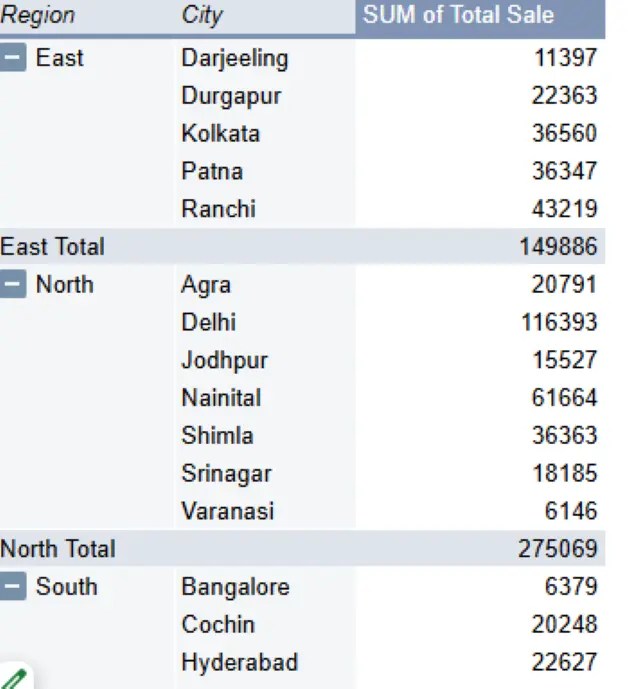
For example:
Drag Category into Rows.
Drag Sales into Values.
Excel immediately displays the total sales for each category.
No formulas required.
Step 5: Rearrange Your Report
One of the biggest advantages of Pivot Tables is flexibility.
You can simply drag fields into different sections.
For example:
- Put Salesperson in Rows.
- Put Month in Columns.
- Keep Sales in Values.
Now your report shows monthly sales for each employee.
You can rearrange the report as often as you like without changing the original data.
Step 6: Filter Your Data
Suppose you only want to view sales for January.
Drag the Month field into Filters.
Choose January from the dropdown menu.
Your Pivot Table updates instantly.
Filtering makes it easy to focus on specific information.
Step 7: Refresh the Pivot Table
If you add new data to your original spreadsheet, the Pivot Table doesn’t update automatically.
To refresh it:
- Right-click anywhere inside the Pivot Table.
- Select Refresh.
Excel will update the report using the latest data.
Benefits of Using Pivot Tables
Here are some reasons why Pivot Tables are popular among Excel users:
- Summarize thousands of rows quickly
- No complex formulas required
- Easy to reorganize reports
- Simple filtering and grouping
- Saves time on repetitive tasks
- Helps identify trends and patterns
Whether you’re a student or a professional, Pivot Tables can make data analysis much easier.
Common Mistakes Beginners Make
Many beginners run into problems because of small formatting issues.
Avoid these mistakes:
- Leaving blank rows in the dataset
- Using merged cells
- Missing column headers
- Mixing numbers and text in the same column
- Forgetting to refresh the Pivot Table after updating data
Keeping your data clean prevents most Pivot Table errors.
Tips for Working with Pivot Tables
- Use clear column names.
- Format your source data as an Excel Table for easier updates.
- Refresh the Pivot Table whenever new data is added.
- Experiment with different row and column layouts.
- Keep your original data unchanged.
The more you practice, the more comfortable you’ll become with creating useful reports.
Conclusion
Pivot Tables are one of the most powerful features in Excel, but surprisingly easy to learn. Once you learn how to create and customize them, you’ll spend less time organizing data and more time understanding it.
Start with a small dataset, try some different layouts and don’t be afraid to explore the options that are out there. If you use Pivot Tables often, they can be one of the most useful tools in your Excel toolbox.
Frequently Asked Questions
How do I refresh a Pivot Table?
You need to refresh the Pivot Table by right-clicking it and selecting Refresh, or by using the Refresh option on the Data tab. Because Pivote Table Does not necessary filters your data automatically.
How do I filter a Pivot Table?
You can filter data using report filters, row labels, column labels, or slicers to display only the information you need.
Can I create a Pivot Table from multiple sheets?
Yes. You can make Pivot Tables from different sheets by making use of Power Query, Data Model, or even consolidating the data into one sheet and then making the pivot tables.
Why is my Pivot Table not updating?
The reason why Pivot Table is not updating can be the fact that the data range from which it draws information does not have new rows and data, and the Pivot Table itself has not been refreshed.

